
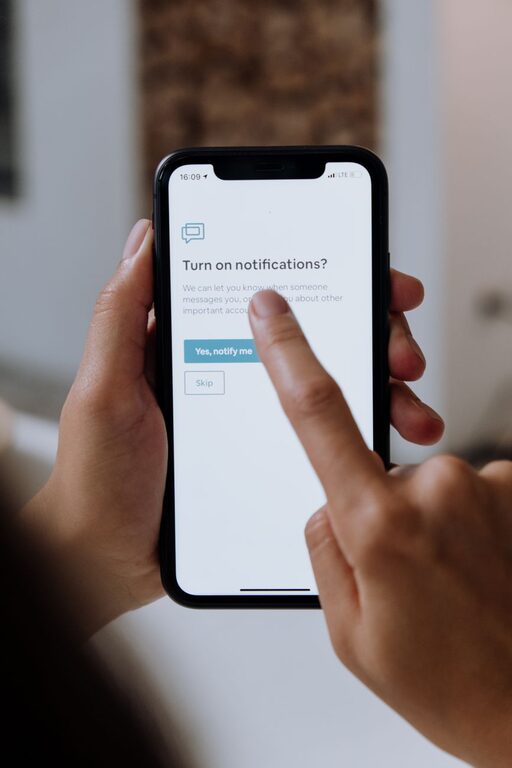
In today’s digital world, notifications are constant. Whether they come from your phone, computer, or apps, they can quickly become overwhelming. While notifications are meant to keep us informed, too many alerts can disrupt our focus, increase stress, and reduce productivity. Setting boundaries with notifications is essential for maintaining balance and protecting your time and attention.
In this post, we’ll explore practical tips to help you manage notifications effectively and create healthier digital habits.
Why Setting Boundaries with Notifications Matters
Notifications are designed to grab our attention, often interrupting whatever we’re doing. Without limits, these interruptions can:
– Break concentration and reduce work quality
– Increase anxiety or stress from constant alerts
– Make it hard to fully relax during personal time
– Lead to compulsive checking of devices
By setting clear boundaries, you reclaim control over your day, improve focus, and create space for uninterrupted work and rest.
Step 1: Audit Your Notifications
Start by understanding where and how you receive notifications. Many apps and services send alerts by default, even if you rarely use them.
– Review your phone’s notification settings
– Check your email and messaging apps for alert preferences
– Look at desktop and browser notifications
– Identify which apps or platforms send the most notifications
Ask yourself which notifications are truly important and which can be minimized or turned off.
Step 2: Customize and Prioritize Notifications
Once you know which alerts you receive, tailor your settings:
– Mute Non-Essential Apps
Disable notifications for apps that don’t require immediate attention. Social media, games, or promotional emails often fall into this category.
– Use Priority or VIP Lists
Many devices allow you to mark certain contacts or apps as priority, so you only get notified for important messages or calls.
– Set Notification Styles
Choose less intrusive notification types, such as banners instead of sounds, or badges without alerts.
Step 3: Establish Do Not Disturb Periods
Create regular times when notifications are silenced to support focus and relaxation.
– Work Hours
Use “Do Not Disturb” during deep work sessions or meetings to avoid distractions.
– Evenings and Nights
Silence notifications after a set hour to encourage rest and reduce screen time before bed.
– Weekends or Personal Time
Consider turning off alerts during weekends or vacations to fully disconnect.
Most devices also let you schedule Do Not Disturb automatically, making it easy to stick to your boundaries.
Step 4: Limit Notification Frequency
Some apps send multiple notifications a day. Reducing frequency helps minimize disruption.
– Adjust app settings to receive daily or weekly summaries instead of instant alerts.
– Use email filters to group notifications into digest emails.
– Disable “push notifications” for newsletters or non-urgent communications.
Step 5: Create Physical Boundaries
Sometimes, it’s helpful to physically separate yourself from devices and notifications.
– Keep your phone on silent and face down during focused tasks.
– Leave your phone in another room while working or spending quality time with loved ones.
– Use apps or device features that limit screen time or lock certain apps temporarily.
Step 6: Practice Mindful Notification Checking
When you do receive notifications, be intentional about how and when you check them.
– Avoid responding immediately unless necessary.
– Set specific times to review messages and emails.
– Close or mute alerts after reading to prevent repeated interruptions.
Mindfulness helps reduce reactive behaviors and improves productivity.
Bonus Tips: Tools to Help You Manage Notifications
– Focus Mode: Many smartphones have built-in focus modes that restrict notifications and app access during certain times.
– Notification Management Apps: Tools like “Freedom” or “StayFocusd” can block distracting notifications or limit app usage.
– Email Management: Use email management tools to prioritize important emails and reduce clutter.
Conclusion
Managing notifications effectively can make a big difference in your daily life. With a few simple changes—auditing alerts, customizing settings, scheduling quiet times, and practicing mindful checking—you can create healthy boundaries that foster productivity, reduce stress, and improve well-being.
Start small and adjust as needed. Over time, these habits will help you take back control over your digital environment and enjoy a more balanced day.